3.8.8 Further settings
Start at login
If you have activated the Start at login option Enreach Contact Desktop will be started automatically every time you start your computer.
Status bar on top
Enable this option to see the status bar in the foreground when you minimize Enreach Contact Desktop.
Call control shortcuts
Enable this option to control calls using keyboard shortcuts.
Click to dial
Enable this option to start a call by clicking a phone number in a web browser or in a third-party application.
To use Click to dial a one-time permission in the browser is requested.
Click to Dial is available on both macOS and Windows and can be used from various third-party applications. The exact steps may vary depending on the operating system and the application used.
To use Click to dial
 The following dialog (or similar) appears:
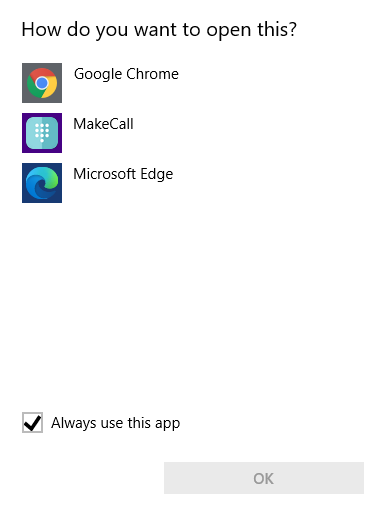 The call is started. If you enabled Always use this app (or a similar option), future calls will start automatically from your Enreach Contact Desktop Client when you click a phone number in a browser or application.
 Dial hotkey
Specify which hotkey you want to use to dial a highlighted phone number and make a call.
Select language
Select the language in which Enreach Contact Desktop should be displayed:
 DanishGermanEnglishSpanishLatvianDutch
Tooltips
Enable this option to see tooltips when hovering over specific icons.