2.6.2 My REACH override
My REACH shows your current REACH status. Your REACH status depends on the configuration made in the REACH app or in operator.
You can create one or more status(es) in the REACH app (for Android or iOS) or online (operator). For more information about REACH, see the documentation for REACH.
To open the REACH status settings, click on your current My REACH Status.
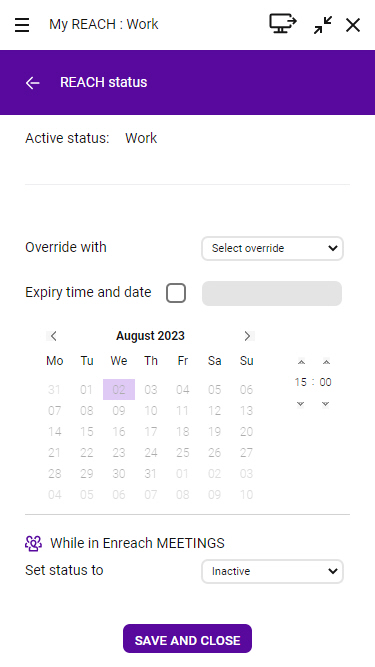
Set manual status override
You can overwrite your current status with a manually set status.
To activate the manual status overwrite
 Your manually set status override is active.
If the manually set status is activated, the selection of the status "While in Enreach Meetings" is deactivated or overridden. To use the status "While in Enreach Meetings", the manually set status must be deactivated.
To deactivate the manual status overwrite
Your manually set status override is deactivated.Set status "While in Enreach Meetings or MS Teams call"
If you can choose between one or more REACH status(es), you can link your status to Enreach Meetings or MS Teams. The set status with corresponding routing is automatically set as soon as you are in a Enreach Meetings session or in an MS Teams call. This prevents you from being disturbed by incoming calls during a meeting.
To link your status to Enreach Meetings or MS Teams, you or your administrator have to create at least one status in the REACH App (for Android or iOS) or online (Operator). For more information about REACH, see the documentation for REACH.
To link your status with Enreach Meetings or MS Teams
The REACH status menu opens. Your REACH settings are saved.The selected status becomes active as soon as you are in a Enreach Meetings session or in a MS Teams call.If you join a Enreach Meetings session as a guest in a web browser, you must first log in as a moderator in the same web browser to activate your availability and the corresponding REACH status While in Enreach Meetings or MS Teams call.
If you are logged in as a moderator in your meeting room, your availability and the corresponding REACH status "While in Enreach Meetings" will become active as soon as at least one guest joins your Enreach Meetings session.
If a manual REACH status override is set, it will remain active while you are in a Enreach Meetings session or in a MS Teams call. To activate your availability and the corresponding REACH status While in Enreach Meetings or MS Teams call, you must deactivate the manual status override, see To deactivate the manual status overwrite.
To deactivate the linking of your status to Enreach Meetings and MS Teams
The REACH status menu opens. Your status is no longer linked to Enreach Meetings or MS Teams.