2.5.1 Internal Phonebook
To get an overview of your colleagues and their availability, click on .
The Internal Phonebook can be edited only with administrator rights and is available to all users in your company.
Search bar
In the search bar you can search by name and phone number. The search query is remembered when you navigate between the tabs.
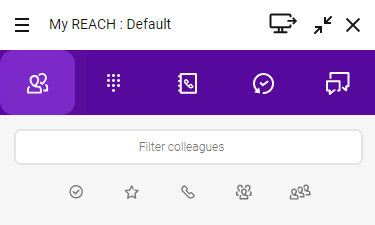
You can also filter the entries according to various criteria.
 Activate to show colleagues who are online. Activate to show your Favorites.Activate to show colleagues who are available for calls.Activate to filter by groups.
If you disable the option Show groups in the colleague list settings, the icon to filter groups in the phonebook will not be displayed. See 3.8.6 Colleagues list settings.
Activate to filter by queues.If you disable the option Show queues in the colleague list settings, the icon to filter queues in the phonebook will not be displayed. See 3.8.6 Colleagues list settings.
If you have set contacts in the phone book as favorites, they are displayed at the top. The remaining contacts are listed below in alphabetical order.
To expand the options for a contact
 The options for the contact will open.
 Click on to call the subscriber.Click on
  to send an invitation to an Enreach meeting.Click on to open the chat.Click on to add a contact to your Favorites or click on to remove a contact from your Favorites.Click on to access the contact information.
You can set the behaviour when you click on a colleague in your contact list, see To set the option “Click on a colleague in the list to”.
Status Display
The status of your contacts is indicated by a coloured dot on the profile picture.
You can set whether to show your status, see 3.3 Presence overwrite.
Symbol | State | Explanation |
|---|---|---|
Available for calls | Contacts that are not logged in to Enreach Contact Desktop but can be reached on a phone or mobile | |
Online | Contacts that are logged in to Enreach Contact Desktop | |
Away | Contacts who have manually set their presence override to Away. | |
Busy | Contacts that are in a call, in a Enreach Meetings session, in an MS Teams call, or have their presence status set to Do Not Disturb | |
Offline | Contacts that are not logged in to Enreach Contact Desktop or a device; contacts that have disabled the transmission of their presence status or manually set their status to Show as offline via client |
To see how your status in Enreach Contact synchronizes with your status in Microsoft Teams, and vice versa, see Microsoft Teams Presence Synchronization.
Notification when a contact is available
You can set to receive a notification when a colleague in your contact list becomes available again after a call or meeting.
To set a notification about the availability of a contact
The options for the contact will open. You have set the notification about the availability of the contact. You will receive a notification about the availability of the contact.
Presence state for Manager
There is a presence status for managers in the event that an assistant is handling a call on behalf of the manager. Instead of shown as busy or in a call the manager is shown as in a call (assistant).

The assistant establishes that the manager (John Silver) is actually available as the assistant is handling a call on behalf of the manager. This allows him to forward a call to the manager if necessary.
If the manager (John Silver) is on a call himself, the assistant observes that he is busy.

In this scenario, the assistant will not forward a call to the manager as the manager is already in a call.