4.4 Using a headset
You can set up preferences that allow you to perform various call control functions using the buttons on your headset. You can use the buttons on your headset to answer, end, reject, and mute calls.
You must select the preferred device in the audio settings in Enreach Contact Desktop. This is mandatory for Headset control. The selection System default will not allow headset integration.
The General setting under Headset control connects headsets to Enreach Contact Desktop based on Human Interface Device (HID) support. Headsets also connect to Microsoft Teams based on HID support. If multiple applications attempt to use the headset at the same time, calls may be interrupted or the headset controls may be temporarily unavailable.
Jabra headsets
If you have a Jabra headset, it is recommended to select Jabra under Headset Control. This provides the best experience for Jabra headsets (see List of supported Jabra headsets).
If you regularly make calls with Microsoft Teams in addition to Enreach Contact Desktop, it is recommended that you use a Jabra headset and set Headset control to Jabra. With Jabra, Enreach Contact Desktop and Microsoft Teams can work side by side without interrupting or dropping calls.
Headsets from other vendors
If you use a headset from another vendor, you can select the General setting under Headset control (various headsets from Poly and Yealink, among others, are supported, see Support for headsets from other manufacturers). This setting is used to connect headsets with HID (Human Interface Device) support to Enreach Contact Desktop.
For example, if you have a Poly or Yealink headset and never or rarely make calls with Microsoft Teams, you can set the Headset control to General. As long as you are not calling through Microsoft Teams, calls from Enreach Contact Desktop will not be disconnected.
If you have a Poly or Yealink headset and make regular calls with Microsoft Teams, you can set the Headset control to Disabled if desired. Then, Enreach Contact Desktop and Microsoft Teams can work side by side without interrupting or dropping calls. However, you will then not be able to use the headset buttons in Enreach Contact Desktop (to answer, end, reject and mute calls via the headset buttons).
Currently, Microsoft Teams does not yet offer an option to disable headset controls within Teams (if it did, headset buttons could still be used within Enreach Contact Desktop).
Headset support
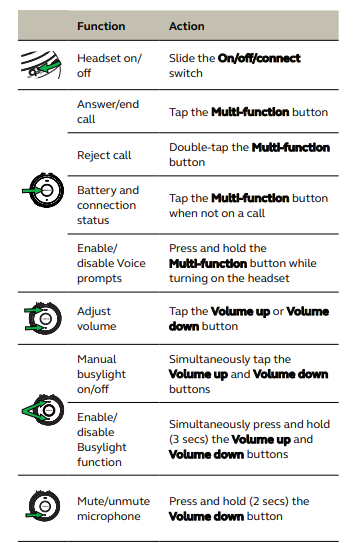
You can use features of headsets in Enreach Contact Desktop. For example, if you want to answer a call, you can do so directly from your headset. Below is an example of what is possible with the Jabra Evolve 65 and 75.
Jabra Evolve 65
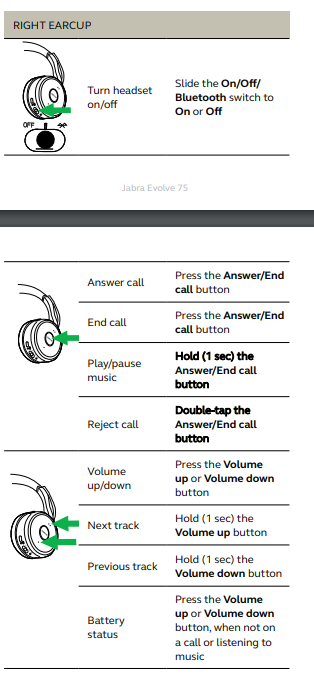
Jabra Evolve 75
List of supported Jabra headsets
In the event of a hardware update (e.g. a new device generation) or a firmware update, headset support cannot always be guaranteed.
Note that you select the Jabra option under Headset Control in the audio settings.
Biz | Engage | Evolve | Evolve 2 | Link | Pro | Speak |
|---|---|---|---|---|---|---|
Biz 1500 | Engage 50 | Evolve 20 | Evolve 2 40 | Link 360 | Pro 930 | Speak 410 |
Biz 2300 | Engage 65 | Evolve 30 | Evolve 2 55 | Link 370 | Pro 935 | Speak 510 |
Biz 2400 | Engage 75 | Evolve 40 | Evolve 2 65 | Link 380 | Pro 9450 | Speak 710 |
Evolve 65 | Evolve 2 80 | Pro 9470 | Speak 750 | |||
Evolve 65e | Speak 810 | |||||
Evolve 65t | ||||||
Evolve 75 | ||||||
Evolve 75e | ||||||
Evolve 80 |
You can find all manuals for the above supported Jabra headsets and features at https://www.jabra.com/support.
It is recommended to use the dongle of the Jabra headset, which may be included in the delivery, in combination with Enreach Contact Desktop.
Support for headsets from other manufacturers
In the event of a hardware update (e.g. a new device generation) or a firmware update, headset support cannot always be guaranteed.
Note that you select the General option under Headset Control in the audio settings.
Poly/Plantronics | |||||
|---|---|---|---|---|---|
Blackwire | APU | BT | Calisto | D series | C series |
Blackwire 3315 | APU76 | BT300C | Calisto 3200 | D100 | C420 |
Blackwire 5210 | BT600 | Calisto 5300 | D200 | C510 | |
BT700 | D100-M | C520 | |||
D400-M | C725 | ||||
For best support and experience of Poly/Plantronics headsets with Enreach Contact Desktop it is recommended to install Poly Lens.
It is recommended to use the dongle of the Poly headset, which may be included in the delivery, in combination with Enreach Contact Desktop.
Yealink | |||||
|---|---|---|---|---|---|
CP | UH | WDD | WH | BT | BH |
CP700 | UH36 | WDD60 | WH62 | BT50 | BH71 |
CP 900 | UH37 | WH63 | BT51 | BH72 | |
UH38 | WH64 | BH76 | |||
WH66 | |||||
WH67 | |||||
It is recommended to use the dongle of the Yealink headset, which may be included in the delivery, in combination with Enreach Contact Desktop.
Gigaset | |
|---|---|
ION |
It is recommended to use the dongle of the Gigaset headset, which may be included in the delivery, in combination with Enreach Contact Desktop.
RTX | |
|---|---|
RTX7143 | |
RTX7451 |
It is recommended to use the dongle of the RTX headset, which may be included in the delivery, in combination with Enreach Contact Desktop.
EPOS / Sennheiser | |||||||
|---|---|---|---|---|---|---|---|
ADAPT | BTD | D series | DECT | EXPAND | SC | SP | SDW |
ADAPT 1x5 | BTD 800 | D10 | Expand 30 | SC 1x5 | SP 20 | SDW 3 BS | |
SC 30 | SDW 5 BS | ||||||
SC 40 | |||||||
SC 260 | |||||||
SC 660 | |||||||